This is the first in what will be an irregular series of methods posts outlining some of our approaches to working with datasets from various sources. Part of our work over the next few weeks will be to examine what happens in the Australian Twittersphere around the upcoming federal election, so I figured it would be a good idea to start with some of the basics of working with Twapperkeeper data. (Note that what I’ll outline here is a working solution, but not necessarily an elegant one – if anybody has a better suggestion, we’d love to hear it.)
Twapperkeeper is an online tool for capturing (public) tweets that contain specific #hashtags, keywords, or @usernames. The datasets it creates are delivered in a standard comma-separated value (CSV) format – including fields such as the tweet itself, the username of the poster, and a timestamp in various formats, as well as a few other bits of backend information.
One of the most immediate points of interest in working with a Twapperkeeper dataset is often to get a sense of the tweet timeline: how does the volume of tweets change over time, for example in response to events occurring in the world? The datasets provide that information – but to create an accurate visualisation of the timeline needs some doing. In this post, I’m going to work through an example, using Twapperkeeper data collected by my colleague Jean Burgess during the recent Australian Labor Party leadership spill (centred around the #spill hashtag and a few related ones).
By default, the Twapperkeeper dataset includes two timestamp fields: created_at (human-readable, e.g. “Sat Jun 19 00:28:04 +0000 2010”, and time (in Unix format, e.g. “1276907284”). Both are problematic: the format for created_at can be inconsistent – sometimes the ‘+0000’ GMT offset is placed before the year, sometimes after it -, and the Unix timestamp has a second-by-second resolution that may be too high if we’re dealing with lower volumes of tweets (e.g. only a few relevant tweets per minute, or per hour).
So, to be able to visualise the data in a more meaningful way, we’ll need to condense the timestamps to larger units of time – minutes, hours, days. I’ve put together a quick Gawk script which helps with this (Gawk is a command-line tool that’s perfect for processing CSV files – and it’s available for Unix, Windows, and Mac):
# explodetime.awk - Explode tweet time information
#
# this script takes a CSV archive of tweets, and adds various additional timestamp representations
#
# expected data format:
# text,to_user_id,from_user,id,from_user_id,iso_language_code,source,profile_image_url,geo_type,geo_coordinates_0,geo_coordinates_1,created_at,time
# (i.e. typical Twapperkeeper format)
#
# output format:
# text,to_user_id,from_user,id,from_user_id,iso_language_code,source,profile_image_url,geo_type,geo_coordinates_0,geo_coordinates_1,time,timestamp,year,month,day,hour,minute
#
# tweet time is provided at various levels of specificity for time-based activity mapping:
#
# FIELD     - CONTENT
# time      - full human-readable timestamp
# timestamp - full Unix timestamp
# condensed - Unix timestamp, condensed to 100-second intervals (i.e. last two digits changed to '00')
# year      - YYYY only
# month     - YYYY-Mon
# day       - YYYY-Mon-DD
# hour      - YYYY-Mon-DD HH
# minute    - YYYY-Mon-DD HH:MM
#
# Released under Creative Commons (BY, NC, SA) by Axel Bruns - a.bruns@qut.edu.au

BEGIN {
	print "text,to_user_id,from_user,id,from_user_id,iso_language_code,source,profile_image_url,geo_type,geo_coordinates_0,geo_coordinates_1,time,timestamp,condensed,year,month,day,hour,minute"
}

{
	print $0  "," substr($13,0,8) "00," strftime("%Y",$13) "," strftime("%Y-%b",$13) "," strftime("%Y-%b-%d",$13) "," strftime("%Y-%b-%d %H",$13) "," strftime("%Y-%b-%d %H:%M",$13)
}
This is called up as follows:
gawk -F , -f explodetime.awk sourcefile.csv >outputfile.csv
The resulting CSV output file contains a number of additional columns: ‘condensed’, in which the last couple of digits in the Unix timestamp (the seconds) are changed to zero, and a range of columns which provide a range of condensed human-readable timestamp variations – from the year only through to a ‘YYYY-Mon-DD HH:MM’ format.
For many purposes, the higher-level human-readable versions will be enough – provided there’s at least one relevant tweet in any given hour, for example, you could load this new CSV file into Excel and create a pivot table that plots the new ‘hour’ field (on the X-axis) against a count of all tweets during that hour (on the Y-axis). For our #spill data, this would look as follows:
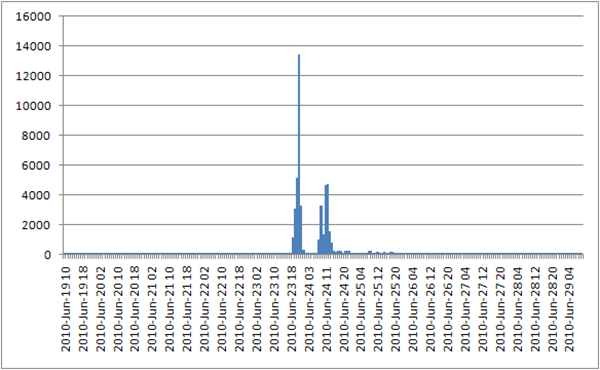
But there’s a problem. This method only works if there are data for each period – Excel isn’t smart enough to recognise that we’re dealing with time-based data here, and won’t automatically insert empty spaces where there’s a gap in the timeline. Take an excerpt from the pivot table for our #spill dataset, for example:
| 2010-Jun-24 15 | 245 |
| 2010-Jun-24 16 | 141 |
| 2010-Jun-24 18 | 256 |
| 2010-Jun-24 19 | 250 |
For some reason (perhaps Twitter or Twapperkeeper was down), no #spill tweets appear in the dataset for hour 17 of 24 June. But that gap doesn’t appear in the Excel graph above – instead, hour 18 follows on directly from hour 16: 5 p.m. never happened. Excel’s limittaions severely compromise our results: gaps don’t appear, and in fact the times listed on the X-axis aren’t even evenly spaced!
To fix this, we could manually insert zeroes into our data (e.g. a new line ‘2010-Jun-24 17’, ‘0’ in the table above), but that isn’t feasible for large datasets, of course. Instead, here’s a somewhat easier way to do it:
- Run the Gawk script above over the dataset to add those extra columns.
- Load into Excel, and create a pivot table: plot ‘condensed’ (the Unix timestamp, rounded down to 100-second intervals) against the count of ‘timestamp’ (pretty much any other field will do as well – we’re just counting, not summing).
- Now copy both columns of the pivot table into a new worksheet.
- Select both copied columns, and insert a ‘Scatter with only Markers’ graph.
The crucial benefit of using a scatter graph is that, contrary to other graph types, it does preserve gaps in the data. For that reason, I’m also using a scatter plot with markers for data points, rather than with interpolation lines – in our example above, an interpolation line would suggest that there were somewhere between 141 and 256 tweets in hour 17 of 24 June, but that’s clearly incorrect. Instead, in the graph below, you can just make out a gap in tweet activity after the second major spike – just as the data tell us there should be.
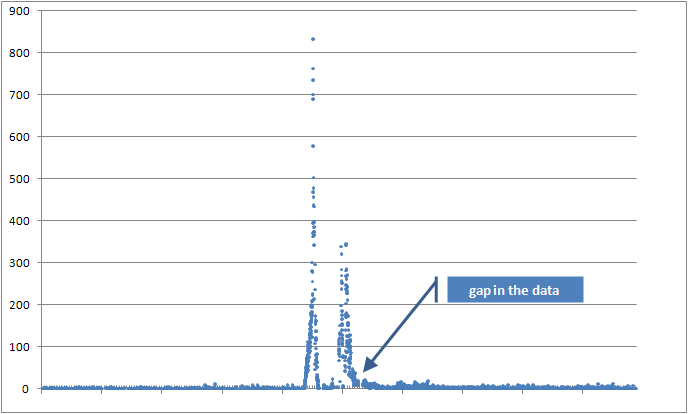
Unfortunately, there’s not much point labelling the unit markers on the horizontal axis, because we’ve had to use Unix timestamps for the data itself – so the unit markers would read something like ‘1276914303’. However, set an interval of 3600 (60 seconds x 60 minutes = 1 hour) for minor axis markers and 86400 (3600 seconds x 24 hours = 1 day) for major axis markers, and they’ll correspond to hours and days. To start and finish the X-axis at a given point in time, use a tool like this to find the timestamp to corresponds to that time (don’t forget to set the appropriate GMT offset!), and use those timestamp values as minimum and maximum values for the X-axis.
So, for our purposes, the three core days (23 to 26 June 2010) in the #spill tweet data look like this – note the now much more obvious gaps in the data during parts of day two:
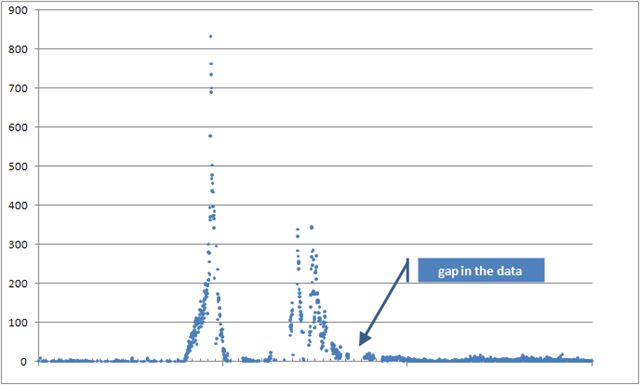
The purpose of this post has been to describe the methods for creating this graph; I’m not going to go into its meaning here, but will leave that for another post. It’s very notable how the early excitement spiked in the latter hours of day one (23 June), with a lull during the early morning hours (in Australia) of 24 June. There’s another time of peak activity during the middle of 24 June, before and after the actual spill vote, though at a lower level of intensity – perhaps people had moved over to follow the live broadcasts on radio and TV, or discussion had branched out from #spill to other tags?
probably interesting as well: http://bit.ly/cFjDJz
Thanks for a very instructive post!
I’ve tried to make a similar timeline graph based on the human-readable timestamps (created_at) from a twapperkeeper archive. Since I’m not familiar with gawk, I’ve tried to make do with excel. The method is not very elegant, but here it goes:
In Excel, to make the created_at cells recognizable as a date/time format, remove the data you don’t need in the created_at column using Data => Text to columns…. In my case, I used “fixed width” to cut day (e.g. “Fri”), “+00:00”, year, minutes and seconds, so I’m left with “Jul 20 11:” or “21 Jul 12:”. Next, I added “:00″ to all cells with the formula =A1&”00” (if you want more detail to your graph, you should be able to keep the minutes in the original cells and then skip the adding of “00”‘s).
The data in each cell is now recognized, at least by Google docs, as a date/time format. This solves the problem with Twapperkeeper’s inconsistent formats (21 Jul vs Jul 20). So imported to a Google docs spreadsheet, the cells get a uniform format, which means you can run a pivot table report and make scatter graph as described in the post.
The upside with this approach would be that the human-readable timeline is preserved in the graph (although only as GMT!), as opposed to Unix timestamps. That makes the graph a bit easier to read. The downside, apart from inelegant fiddling with Excel cells and a bit of cut and paste, would be that time periods (in this case hours) with no tweets still do not show up in the graph (although the gaps show like in the approach above).
The insertion of missing time periods can be done, however, both in Excel (with a macro I assume) and in programs like STATA. If you do that, the distribution of tweets can for instance be visualized with an interactive timeline gadget in google docs, which can be helpful when identifying specific periods for further analysis etc.
Hope that made sense. Keep those methodology posts coming!
Hi Hallvard,
that will produce more or less the same results, I think, but it’s much more complicated than the Gawk solution, and still open to some additional pitfalls – seriously, get familiar with Gawk, you won’t regret it. 🙂
One major problem I see with your approach is that it ends up ignoring potential timezone offsets (since part of what you’re doing is removing the ‘+00:00’, ‘+10:00’, etc.). So, “1 Jan 2001 00:00:00 +00:00” and “1 Jan 2001 00:00:00 +10:00” would end up resolving to the same time, even though they’re ten hours apart ! Sadly, how those timezone offsets appear in the Twapperkeeper data is inconsistent (and I think this depends ultimately on how the Twitter client that the individual users are posting from formats its human-readable timestamps – i.e. whether it includes a timezone offset or converts the time to UCT +00:00 as the tweet is made).
So one result of your method could be that rather than seeing one spike of tweeting activity around a specific time (coinciding for example with a TV show at 20:00:00 +10:00), you might see two or more in your processed timeline – one at 20:00:00 (where time was specified as “20:00:00 +10:00”, and your method simply dropped the ‘+10:00’), and one at 10:00:00 (where time was specified as “10:00:00 +00:00”, which is equivalent to “20:00:00 +10:00”).
By contrast, what the Gawk script above does is the following:
* it uses the Unix timestamp (which is always consistently in UTC)
* it generates, from the Unix timestamp, a number of additional CSV columns that provide the date at various levels of resolution, in a consistent format, and in the timezone of the computer on which the script is run:
– YYYY
– YYYY-Mon
– YYYY-Mon-DD
– YYYY-Mon-DD HH
– YYYY-Mon-DD HH:MM
Especially the coarser resolution levels (days, and perhaps hours) should be sufficient – and remain human-readable – if you have enough tweets to ensure that you don’t need to add in empty cells to make up for gaps in the data. That’s what I’ve used for my latest (four-part) series of posts looking over #ausvotes activity during the election: I was interested only in the day-to-day patterns, and where for specific categories of posts there was no content it wasn’t too difficult to add empty cells to retain those gaps.
You’ll need to resort to the less human-readable timestamps only where you need the really fine-grained data – and there, it might be easiest to write an additional script that resolves those timestamps after the fact, or to manually add some labels to the graph once it’s been created…
Hope that helps !
Hi there Axel,
thanks for the reply. I’ll promise to give Gawk a try 🙂
Regarding the problem with time zone offsets: The dataset I’ve worked with has all the tweets on “+00:00”. The only inconsistency in the created_at field is the order, for example “Sun 08 Aug 2010 17:01:24 +0000” vs “Sun Aug 08 17:14:55 +0000 2010”. In that case, then, I wouldn’t risk getting peaks where they shouldn’t be, if i understand it right? More generally, I agree that the gawk approach using unix timestamps seems better.
Hi again,
if you can be sure that the original timestamps are consistent, then yes, your method should be fine. I wouldn’t bet the house on it, though…:-) The best idea is probably to try it, and check whether there is any evidence of double peaks anywhere in the data.
Axel
Hi,
I managed to transform time in unix format to “human readable” format simply by utilizing excel’s built-in recoding functionalities. It went something like this:
=((N1+93600)/86400)+24106
Where N1 is the cell containing the unix time, and the rest goes as follows:
93600 – time zone adjustment (GMT +2, swedish summer time)
86400 – N of seconds in one day
24106 – N of days since January 1, 1904 (on mac os x – see http://www.peterabowen.com/?p=8)
Worked out fine and I did not have to via Gawk – which of course looks like it’s good for other transformations…
Regards,
/A